 VoyagesPlan a Voyage
import { Callout, Steps } from ‘nextra/components’
Plan a Voyage
Goal: Create a new voyage record in IN-YACHT by defining the departure port, arrival port, dates, and optional route data, so the voyage appears in the voyage list and can be tracked.
Before you start
- You must have permission to create voyages. If you don’t see the Create button, ask your fleet administrator to check your profile settings.
- The departure and arrival ports must already exist as destinations, or you must be ready to create them inline during this procedure. See Add a Destination if you want to set them up first.
Steps
Open the Voyages list
-
From the main navigation, click Voyages.
-
In the sub-navigation, select Voyages.
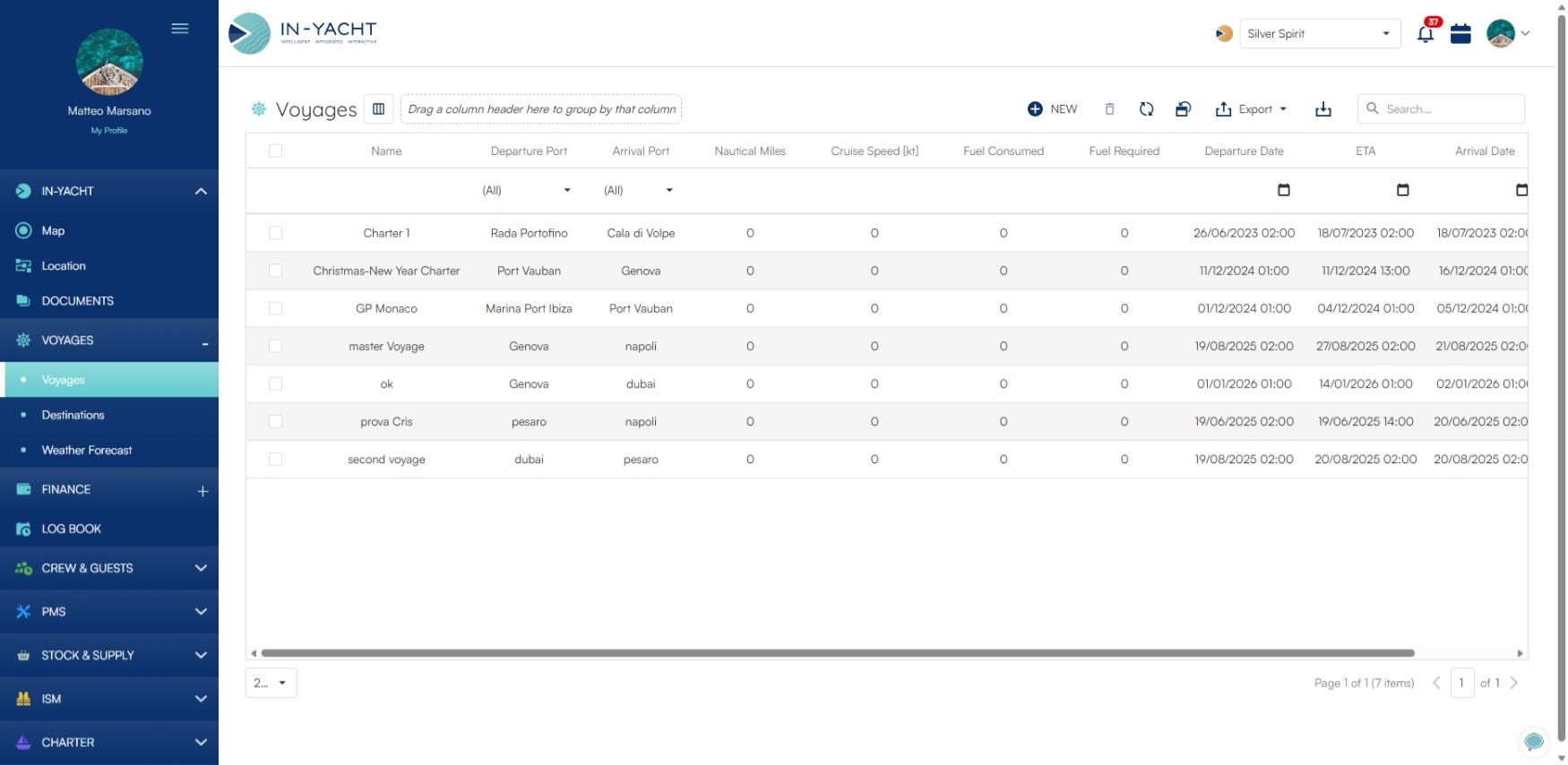
You will see the voyage list, showing existing voyages with columns: Name, Departure Port, Arrival Port, Nautical Miles, Cruise Speed, Fuel Consumed, Fuel Required, Departure Date, ETA, and Arrival Date.
Create a new voyage
-
Click the Create button (top right of the list).
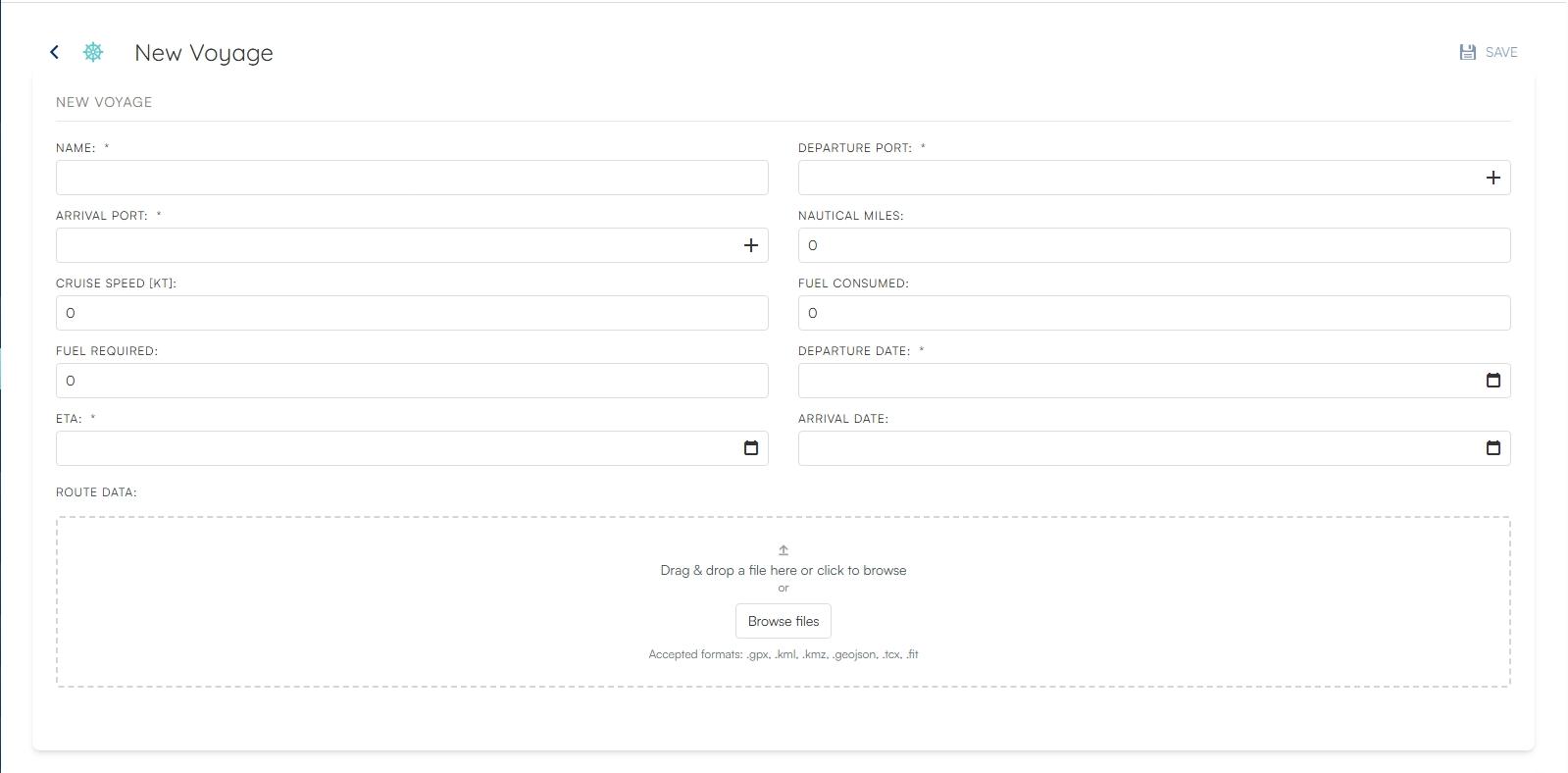
The voyage creation form opens with two columns of fields.
Fill in the required fields
-
Enter the voyage Name.
-
In the Departure Port field, type to search for an existing port.
If the port does not exist yet, click the **+** button next to the field to open the **New Port** modal. Fill in the port name, latitude and longitude (or type an address to geocode automatically), and optionally country, description, and a photo. Click **Save** to create the port and return to the voyage form. -
In the Arrival Port field, repeat the same process.
-
Set the Departure Date (date and time, format:
dd/MM/yyyy HH:mm). -
Set the ETA — the estimated date and time of arrival (format:
dd/MM/yyyy HH:mm).
Fill in the optional fields
-
Optionally, enter one or more of the following:
Field Description Nautical Miles Planned route distance Cruise Speed Expected cruising speed (knots) Fuel Required Estimated fuel needed Fuel Consumed Actual fuel used (typically filled in after the voyage)
Upload route data (optional)
- Scroll down to the Route Data section.
- Upload one or more route files. Accepted formats:
.gpx,.kml,.kmz,.geojson,.tcx,.fit.
Save the voyage
- Click Save.
Result
The voyage is saved and appears in the voyage list with the status implicitly set to Planned (departure date is in the future, no arrival date recorded). You can edit any field at any time by clicking the voyage row to open its detail view.